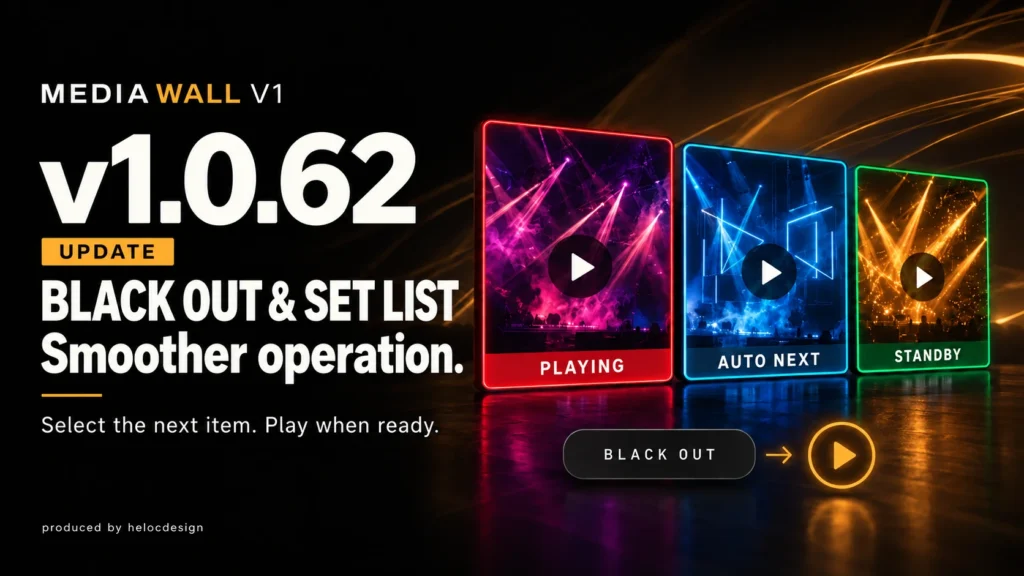
MEDIA WALL V1 v1.0.62 is now available.
This update fixes picture switching after BLACK OUT and improves standby selection, allowing you to prepare your next media item while a SET LIST continues playing.
Fixed a Brief Flash of the Previous Picture
Previously, starting another media item after BLACK OUT could briefly display the previous picture.
This issue has been fixed. Playback now switches from black to the next item without showing the previous picture again.
Select Your Next Item While the Output Stays Black
During BLACK OUT, click a tile once to select the item you want to play next. Selecting a tile keeps the output black.
When you are ready, press the ▶ Play button on the right to start the selected item.
Prepare a Standby Item During SET LIST Playback
You can now click a tile once to select a standby item while your SET LIST continues playing.
The tile frame colors identify each state:
| Frame color | State |
|---|---|
| Red | Currently playing item |
| Light blue | Next item to play automatically in the SET LIST |
| Green | Manually selected standby item |
Your manual standby selection is retained as the SET LIST advances. Pressing BLACK OUT stops automatic list progression and keeps your standby selection ready until you press ▶ Play.
The workflow is:
Play SET LIST → Select a standby item → BLACK OUT → Press ▶ to play the standby item
The Japanese and English manuals have also been updated.
How to Update
For users running v1.0.56 or later
- Stop video, audio, and SET LIST playback, then save your project.
- From the Mac menu bar, choose MEDIA WALL → Check for Updates.
- Review the release notes and choose Update.
- Once downloading and verification are complete, the app restarts automatically to install the update.
- Check the version, media layout, playback, and external display output after updating.
For users running v1.0.55 or earlier
Save your project and quit the app. Download the latest official release ZIP, extract it, and replace your existing “MEDIA WALL.app” in the same location.
Your existing purchase activation, settings, and saved projects are retained. You normally do not need to purchase again or re-enter your purchase key.
Do not deactivate your license or delete settings data when updating. Allow time to check your setup before using the updated app in a live event.